

Every AI Assistant setup we've covered so far, i.e., ChatGPT, Claude, Gemini, etc., sends your prompts to a provider's servers over an internet connection. For a lot of workflows that's perfectly fine. But if you're working with sensitive schemas, regulated data, or you'd simply rather not depend on an internet connection or a monthly API bill, Navicat also supports connecting the AI Assistant to a model running entirely on your own machine, via Ollama or LM Studio.
Why Go Local?
A few reasons this is worth setting up, even if you already have a cloud AI Assistant configured:
- Privacy: your table structures, sample data, and queries never leave your computer.
- No per-token cost: once a model is downloaded, there's no API bill for using it.
- Works offline: useful if you're developing somewhere without reliable internet access.
- Model choice: both tools give you a library of open models to pick from, so you can match the model size to your hardware.
The trade-off is that a local model running on a laptop generally won't match a frontier cloud model's reasoning quality, and larger models need real RAM and, ideally, a decent GPU to run at a usable speed. For those reasons, a local LLM is a good fit for routine tasks such as drafting a query, generating sample data, writing a table comment, but less so for an in-depth debugging session.
Setting Up Ollama
Ollama runs models locally and exposes them through a simple local server that Navicat can talk to. Here's how to set it up in Navicat:
- Install Ollama from its official website and make sure it's running on your system with at least one model configured.
- In Navicat, go to Tools > Options.
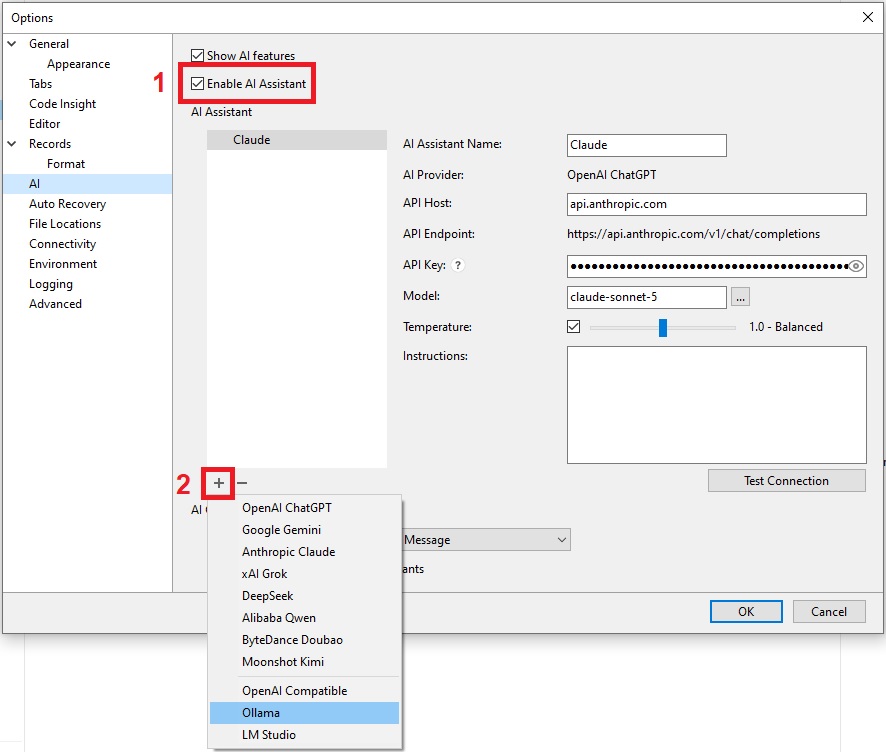
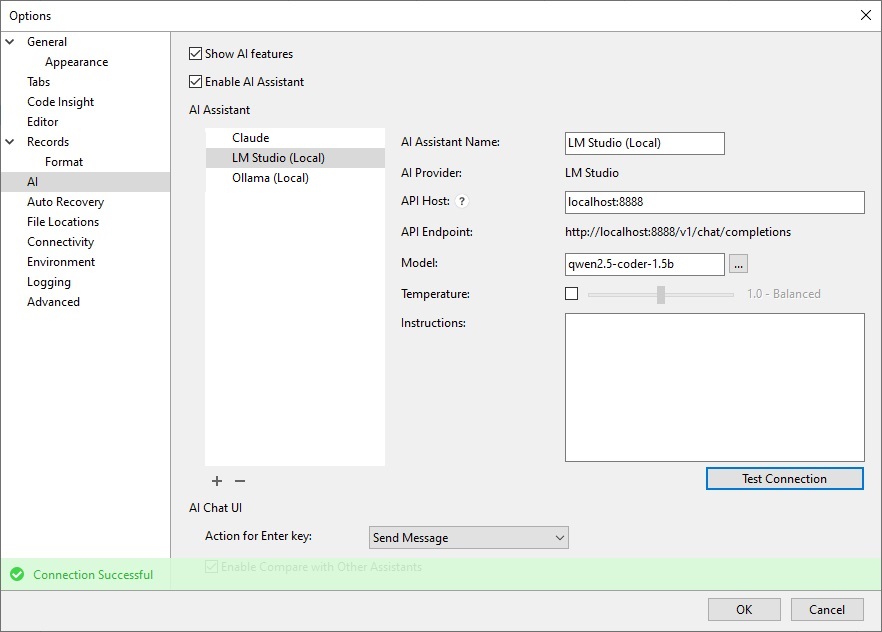
- In the Options dialog, select the AI section and check Enable AI Assistant. (Step 1 in image below)
- Click the + button (step 2 in image below) and choose Ollama from the provider list.
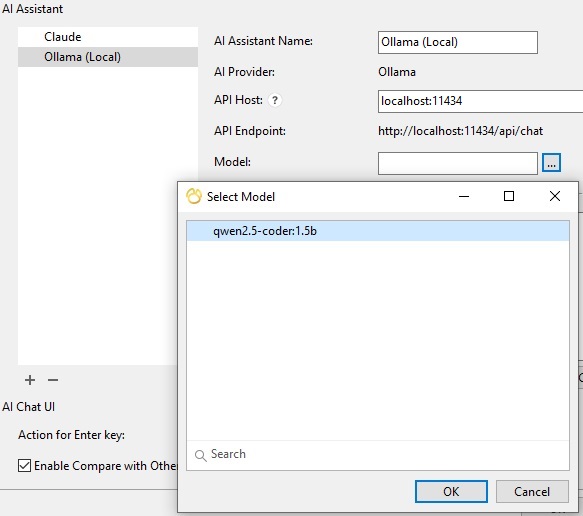
- Give it a name under AI Assistant Name - something like "Ollama (Local)" to distinguish it from your cloud assistants.
- Enter your Ollama server's address under API Host (if different that the default).
- Choose which downloaded model you want Navicat to use.
- Adjust Temperature if you want more or less randomness in responses.
- Optionally, add instructions to set the tone and rules for the conversation.
- Click Test Connection to confirm everything's working. You should see a "Connection Successful" message at the bottom of the screen for a few seconds.
- Click OK to save.
Setting Up LM Studio
LM Studio follows essentially the same pattern; even though it's a different local model runner, Navicat talks to it the same way:
- Install LM Studio and make sure it's running, with a model loaded and its local server started.
- In Navicat, open the Options dialog, select the AI section, and check Enable AI Assistant if you haven't already.
- Click + and choose LM Studio.
- Name it - something like "LM Studio (local)" - enter the API Host for your LM Studio server (if different that the default), and pick your model.
- Adjust Temperature and add an instruction if you'd like.
- Click Test Connection, then OK to save.
Switching Between Assistants
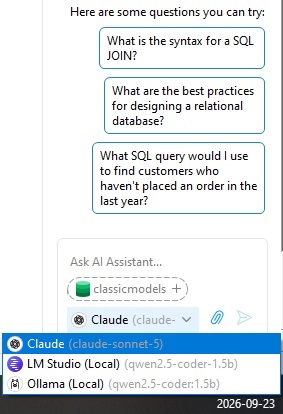
Since each configured provider gets its own named entry, you're not locked into one choice. Keep a cloud assistant for your toughest problems and a local one for routine, sensitive, or offline work, and switch between them right from the AI Assistant dropdown whenever the moment calls for it.