


If you've ever accidentally modified a live record because your database client committed changes the moment your cursor left a cell, you know the instant flash of panic that follows. Standard grid behavior in many database tools - where every keystroke is immediately written to the server - can feel like working without a safety net.
Navicat 18 addresses this issue by introducing two practical features designed to give you complete control over manual data updates: Batch Editing for staged grid editing, and the Record Navigation side panel in Form View. Together, they streamline data cleanup tasks while ensuring you understand exactly when changes are committed.
Understanding Batch Editing and the Batch Editing Bar
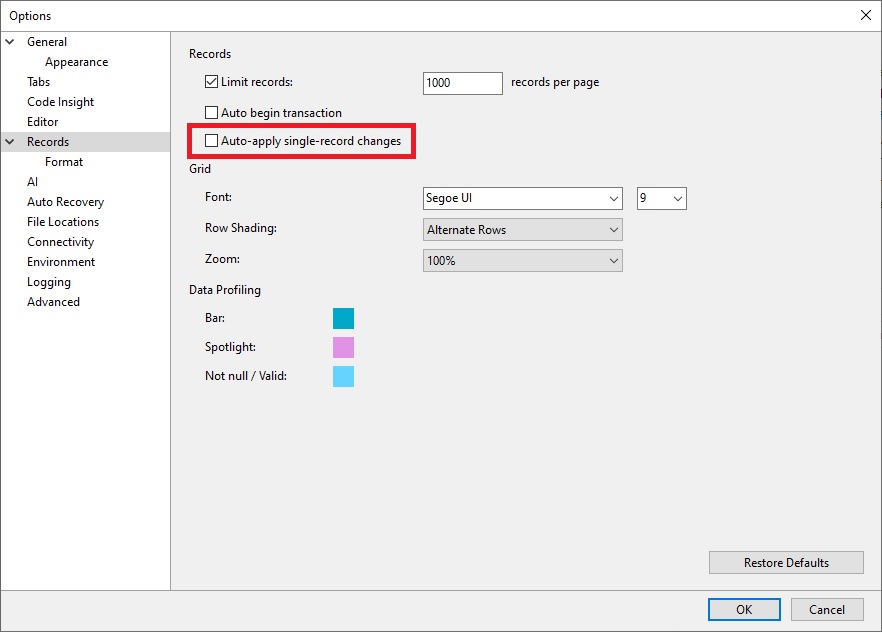
By default, Navicat commits edits the moment your cursor leaves a record. However, when Auto-apply single-record changes is disabled (under Tools > Options > Records), Navicat enters batch editing mode. This allows you to stage modifications across multiple rows and columns simultaneously before sending a single update to the server.
When staged edits are active, the Batch Editing bar appears at the bottom of the grid, displaying a count of pending records alongside Apply and Discard controls:
- Multi-Row Staging: You can edit fields across several different records - such as updating contact details or credit limits for multiple customers - without committing each row as you navigate through the grid. Modified rows are clearly highlighted in the grid.
- Batch Discard: Clicking Discard immediately clears the entire staging buffer, reverting all pending edits across every modified record back to their original values in a single click.
- Batch Apply: Clicking Apply executes all accumulated updates across your staged records simultaneously, ensuring all changes are committed together and verified by server validation.
Step-by-Step: Testing Batch Edits in classicmodels
To see multi-row staging in action using MySQL's sample classicmodels database:
- Ensure Auto-apply single-record changes is unchecked in your Navicat Options under Records (highlighted in red):
- Open the
customerstable in Grid View. - Double-click a cell in the
customerNamecolumn for "Baane Mini Import" and modify its value. - Click directly into a second record (e.g., changing the
contactFirstNamefor "Mini Wheels Co.") and a third record (e.g., editing thephonenumber for "Muscle Machine Inc"). - Notice that navigating between rows does not commit your edits. All three rows remain highlighted in peach, and the Batch Editing bar appears at the bottom displaying
3 pending records (Update: 3)alongside the Apply and Discard buttons: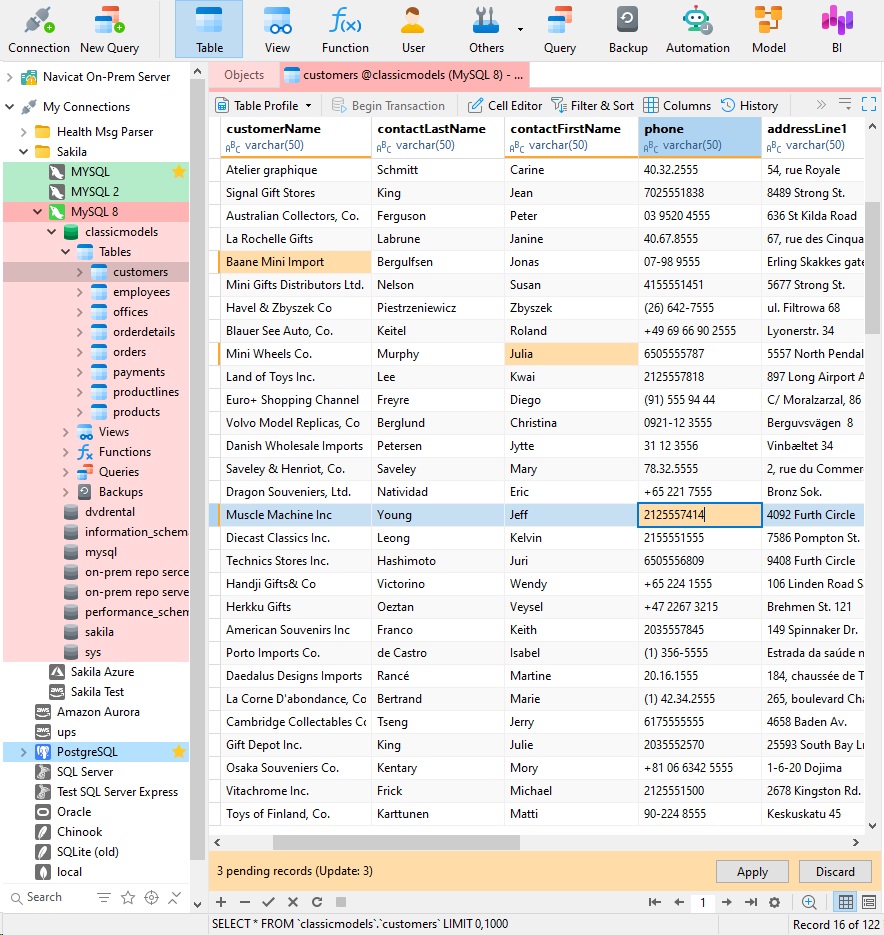
- Click Discard. Notice that all three staged changes across the table instantly revert to their original database values.
- Re-apply your edits across multiple records. When you are ready to finalize the entire batch, click Apply to write all changes to the database simultaneously.
Configuring Navicat for batch editing turns the Discard button into a global safety net, allowing you to freely perform complex multi-record cleanups across large tables without the risk of partial or accidental saves.
Rapid Record Auditing with the Navigation Side Panel
While Grid View works well for high-level data entry, reviewing complex records with dozens of attributes is often much cleaner in Form View. However, stepping through individual records using "Next" or "Previous" controls can become tedious during large-scale auditing.
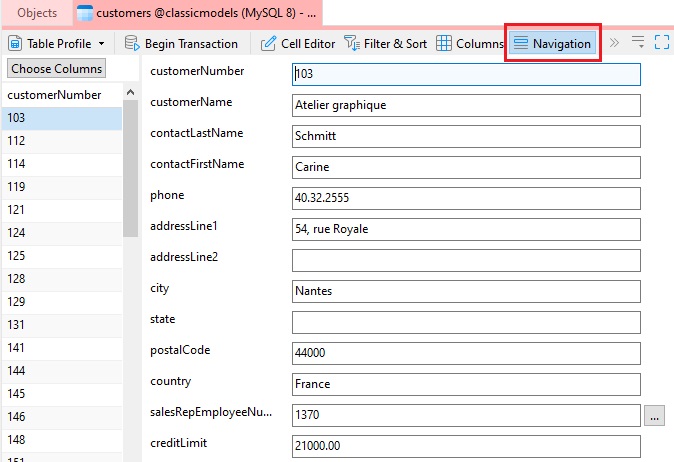
Navicat 18 introduces a dedicated Record Navigation side panel directly alongside Form View. This panel provides a searchable list of records sorted by primary key or designated display fields, turning Form View into a fast, navigable inspector.
Step-by-Step: Locating Records in Form View
- With the
customerstable open, switch to Form View using the bottom view bar. (The Form View button is highlighted in red.)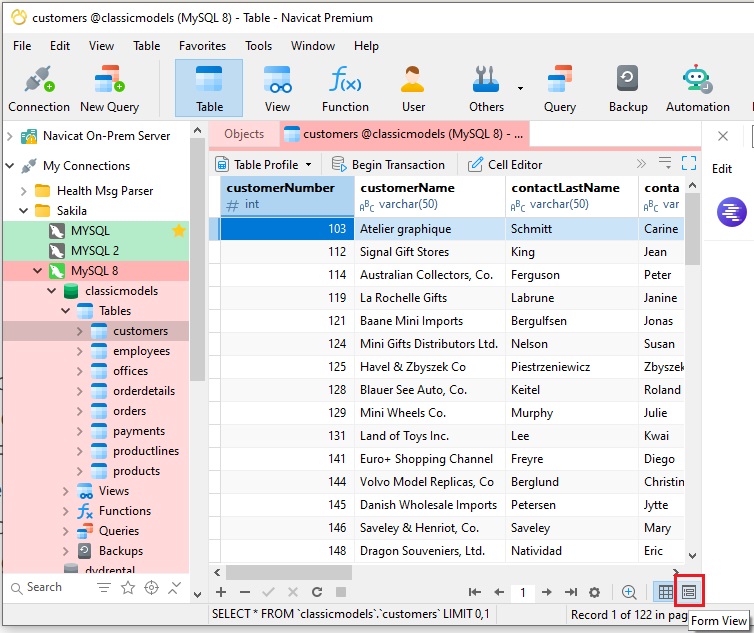
- Make sure that the Record Navigation panel is expanded on the side of the window.
(The Navigation button is highlighted in red.)
- Use the search filter at the top of the panel to locate a specific
customerName, such as "Blauer See Auto, Co.". You may also select multiple records.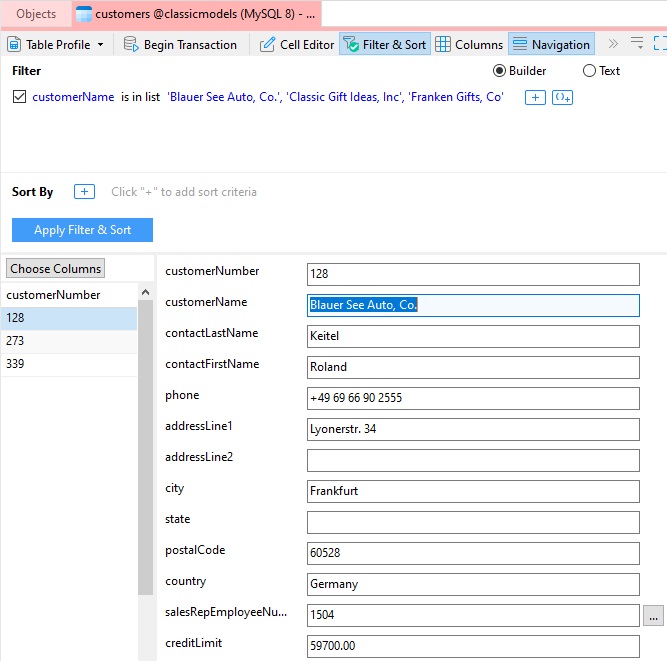
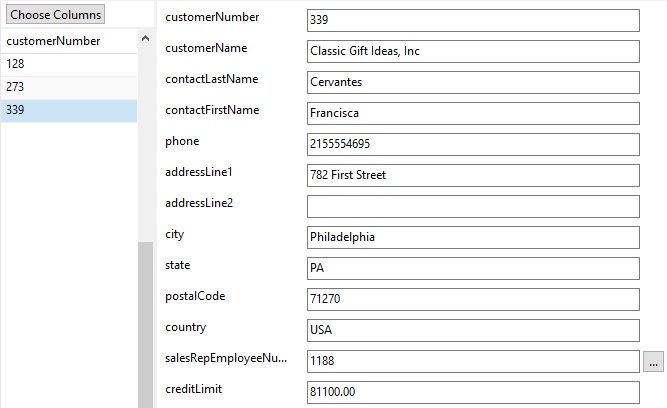
- Click an entry in the list to jump directly to that record's form fields without sequentially cycling through every row.
Conclusion
Whether you are correcting customer account details in a test database or scrubbing invalid entries in production, these UI updates clarify exactly how and when data gets written. By pairing multi-row batch editing controls with fast Form View navigation, Navicat 18 makes routine manual data maintenance safer and significantly more efficient.